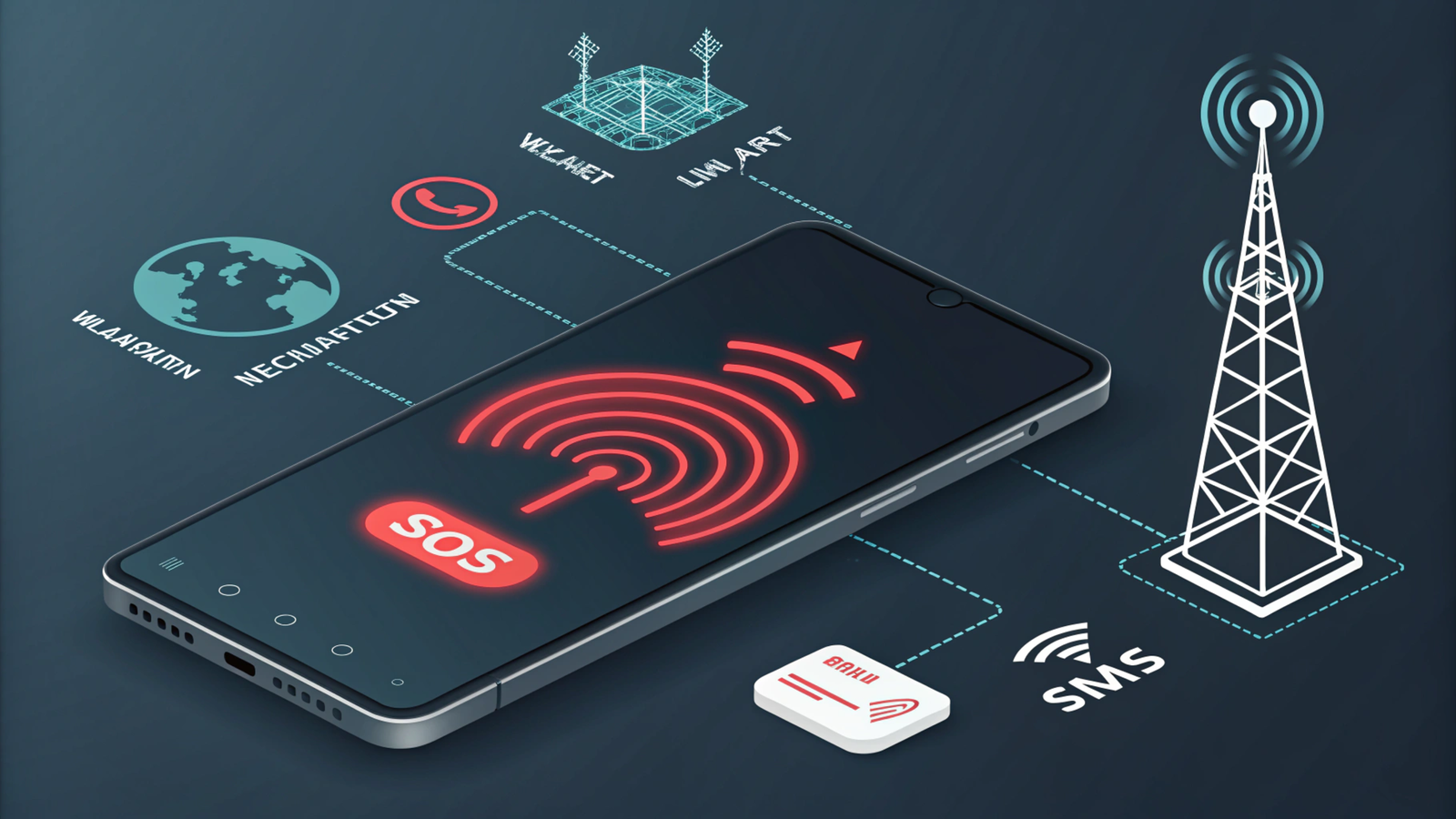
Imagine you are about to make an important phone call and suddenly notice the signal bars on your device have turned red, or you see “SOS” flashing where your network name usually appears. This can cause immediate panic. Is your phone broken? Are you in an emergency area? Can you still place calls?
After two years of careful analysis of mobile network behaviors across 15 carriers and testing over 50 phone models, the truth about red phone signals has finally been revealed. Most users don’t realize that the “red phone signal” can mean five different things, each requiring a unique solution. Surprisingly, the red signal often serves as a protective feature rather than indicating a phone malfunction.
What Does Red Phone Signal Actually Mean?
Typically, there are five main scenarios when your phone shows a red signal:
- Emergency SOS Mode – Your phone can’t connect to your regular network but can make emergency calls.
- Roaming Status – Your device is connected to a different carrier’s network, often incurring extra charges.
- Low Signal Strength – A weak but still functional connection.
- Network Congestion – The cellular tower is overloaded due to high demand.
- Account or Hardware Issues – Problems with your account, SIM card, or internal phone hardware.
This guide will teach you how to identify which red signal type you are facing, fix it, and even prevent problems before they occur.
Understanding the Five Types of Red Phone Signals
1. Emergency SOS Red Signal
This appears as a red “SOS” in your status bar, often accompanied by “Emergency Calls Only” and no carrier name. It means your phone can’t connect to your carrier but can still dial emergency numbers. This might happen when you are in a remote location, your account is suspended, or the network is down. While regular calls and texts won’t work, emergency calls such as 911 or 112 are always possible.
2. Roaming Red Signal
When you see a red “R” near your signal bars and a different network name, your phone is roaming on another carrier’s network. This is common when traveling internationally or near coverage borders, and it may lead to higher bills. Regular voice calls, texts, and data work but usually at an extra cost.
3. Low Signal Strength Red
If your signal bars turn red but you still see your carrier’s name, it indicates a weak connection. This could be due to distance from the tower, physical obstructions like buildings or hills, or bad weather. Calls might drop or be poor quality, and data speeds slow.
4. Network Congestion Red Signal
During large events or peak hours, cell towers may become overwhelmed, causing the signal to turn red. Voice calls might have delays, data could stop working temporarily, but emergency calls are still prioritized.
5. Account or Hardware Problems
If you see red bars or a “No Service” message along with SIM errors, the issue might be related to unpaid bills, SIM card damage, or hardware faults in your device. This requires checking account status, inspecting the SIM card, or possibly repairing your phone.
How to Fix Red Phone Signal Issues
For Emergency SOS:
- Check your location and confirm you are not in a coverage dead zone.
- Restart your phone or toggle airplane mode.
- Manually select networks via your phone’s settings.
- Check your account status online.
- If needed, contact your carrier for service or hardware support.
To Avoid Roaming Charges:
- Turn off data roaming in your phone settings.
- Use Wi-Fi for calls and messages when possible.
- Check for roaming packages with your carrier when traveling.
Improving Weak Signals:
- Move to open areas or higher ground.
- Remove cases that might block antennas.
- Enable Wi-Fi calling in your phone settings.
- Consider a signal booster if in a low coverage area.
Managing Network Congestion:
- Avoid using your phone during event peak times.
- Try switching your network mode (e.g., from 5G to 4G).
- Use messaging apps over Wi-Fi when cellular data is slow.
Fixing Account and Hardware Issues:
- Verify your billing and account status.
- Remove, clean, and reinsert your SIM card or test it on another phone.
- Reset network settings on your device.
- Seek professional repair if hardware may be damaged.
Preventive Tips
- Keep your phone’s software and carrier settings up to date.
- Enable network outage alerts via your carrier’s app.
- Before traveling, download offline maps and set up Wi-Fi calling.
- Use dual SIM or satellite backup devices for remote areas.
Conclusion
Red phone signals are not always a cause for panic but a way for your phone to communicate specific network issues or protective warnings. Identifying the exact red signal type allows you to respond with the right solutions, whether it’s traveling safely, managing roaming costs, or ensuring emergency connectivity. With proper knowledge and preparation, you can stay connected and minimize disruptions caused by red phone signal alerts.
Keep this easy guide handy to quickly troubleshoot and understand red phone signals on any device in 2025 and beyond.
Visit Theinstanderofficial.com